Keyboard Shortcuts
Careti's keyboard shortcuts let you access AI assistance without taking your hands off the keyboard. Speed up your workflow by using hotkeys for common Careti actions.
Default Keyboard Shortcuts
Careti comes with the following built-in keyboard shortcuts to streamline your workflow:
| Action | Windows/Linux | macOS | Condition | Description |
|---|---|---|---|---|
| Add to Careti | Ctrl+' | Cmd+' | When text is selected | Adds selected code to Careti chat |
| Focus Chat Input | Ctrl+' | Cmd+' | When no text is selected | Focuses the Careti chat input field |
| Generate Commit Message | (unset) | (unset) | When Git is the SCM provider | Available through the Source Control view |
Available Commands for Custom Shortcuts
While Careti has only a few default keyboard shortcuts, you can assign your own shortcuts to any of these commands:
| Command ID | Description |
|---|---|
caret.addToChat | Adds selected code to Careti chat |
caret.addTerminalOutputToChat | Adds terminal output to Careti |
caret.focusChatInput | Focuses the Careti chat input field |
caret.generateGitCommitMessage | Generates a commit message for staged changes |
caret.explainCode | Explains selected code |
caret.improveCode | Suggests improvements for selected code |
caret.fixWithCline | Fixes code with errors |
claude-dev.SidebarProvider.focus | Opens and focuses the Careti sidebar |
Customizing Keyboard Shortcuts
You can customize Careti's keyboard shortcuts to match your preferences:
-
Open the Keyboard Shortcuts editor in VSCode:
- Press
Ctrl+K Ctrl+S(Windows/Linux) orCmd+K Cmd+S(macOS) - Or go to File > Preferences > Keyboard Shortcuts
- Press
-
Search for "Careti" to see all available commands
-
Click on the pencil icon next to any command to change its shortcut
-
Press the keys you want to assign to that command
-
Press Enter to save the new shortcut
Suggested Custom Shortcuts
Here are some suggested shortcuts you might find useful:
| Action | Suggested Shortcut | Command ID | Description |
|---|---|---|---|
| Open Careti Sidebar | Ctrl+Shift+C / Cmd+Shift+C | claude-dev.SidebarProvider.focus | Opens the Careti sidebar panel |
| New Task | Alt+N | caret.plusButtonClicked | Starts a new Careti task |
| Add Terminal to Careti | Alt+T | caret.addTerminalOutputToChat | Adds terminal output to Careti |
| Clear Current Task | Alt+C | (Requires custom keybinding to UI action) | Clears the current task |
Keyboard-Only Workflow
With the right shortcuts, you can use Careti without ever touching the mouse:
- Select code with keyboard navigation (
Shift+Arrowkeys) - Send to Careti with
Ctrl+'/Cmd+' - Type your question and press Enter
- Review the response and apply suggestions
Editor Integration Shortcuts
Careti's keyboard shortcuts integrate seamlessly with VSCode's built-in shortcuts:
- Use VSCode's selection shortcuts (
Ctrl+L/Cmd+Lto select line, etc.) before sending code to Careti - Combine with VSCode's split editor shortcuts to view code and Careti side by side
- Use VSCode's terminal focus shortcut (
Ctrl+`/Cmd+`) before capturing terminal output
Tips for Effective Use
- Learn the default shortcut first: The
Ctrl+'/Cmd+'shortcut is versatile - it adds selected code to chat when text is selected, or focuses the chat input when nothing is selected - Create muscle memory: Use keyboard shortcuts consistently to build habits
- Customize for your workflow: Assign shortcuts to commands you use frequently
- Consider ergonomics: Choose shortcuts that are comfortable for your keyboard layout
Keyboard shortcuts may seem like a small optimization, but they can significantly speed up your workflow when using Careti regularly. By keeping your hands on the keyboard, you maintain your coding flow while still getting AI assistance exactly when you need it.
How to Find All Available Commands
To see all Careti commands that can be assigned shortcuts:
- Open the Command Palette (
Ctrl+Shift+P/Cmd+Shift+P) - Type "Careti" to filter the list
- Browse the available commands
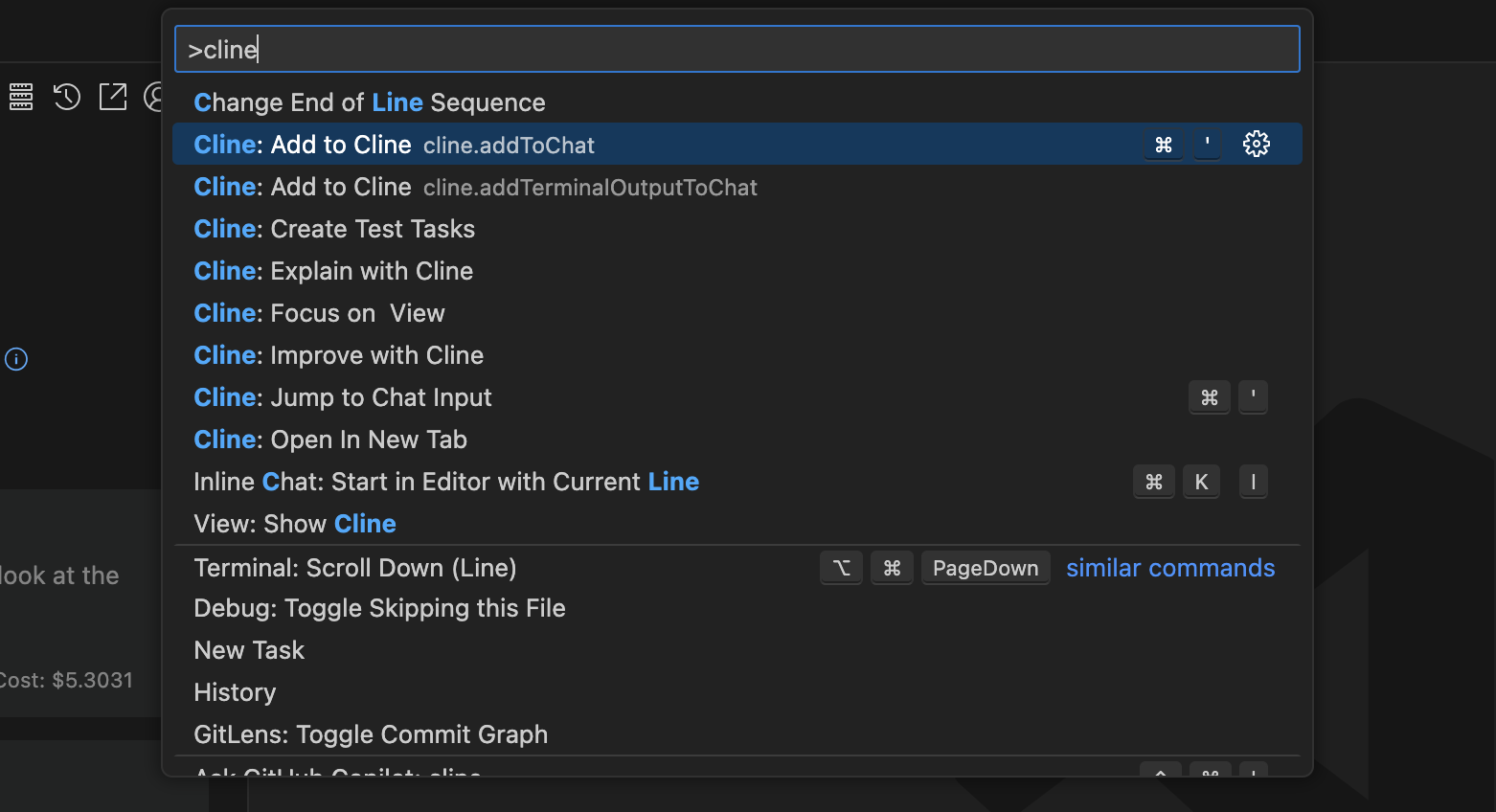
This helps you discover features you might not have known about and assign shortcuts to the ones you use most frequently.